File browsing
Browse your PC files from your phone
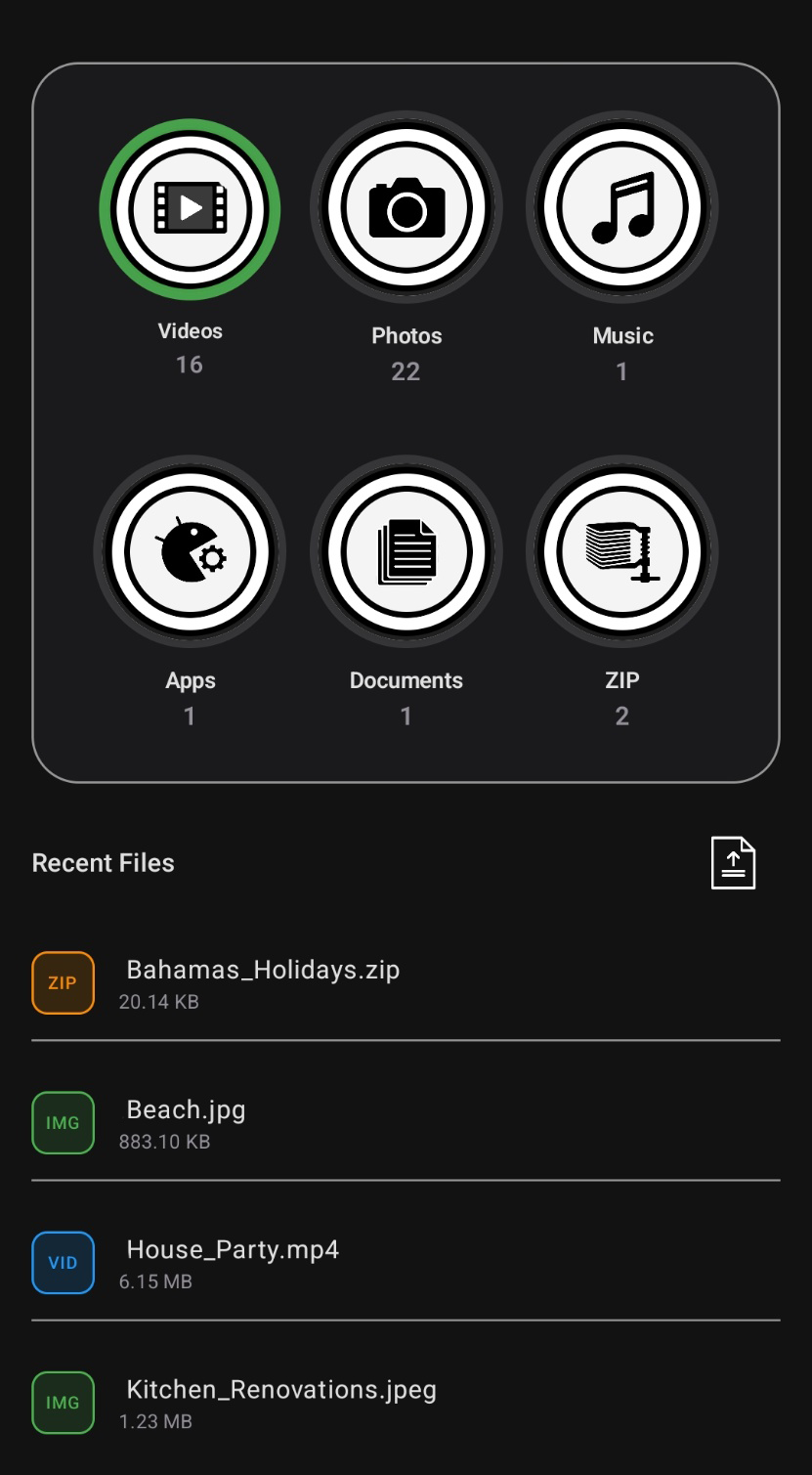
Open your files from a clean mobile view with quick access to categories, recent items, and shared folders you made available from the desktop app.
- Videos gives fast access to video files from your PC.
- Photos collects image files into an easy-to-open category.
- Music lets you jump straight into audio files.
- Recent files helps you reopen things you accessed recently.
- Shared folders show the libraries you chose on the desktop side.
- Mobile layout keeps navigation simple and quick on a phone screen.
Smart sharing
Share files with links, QR access, and built-in controls
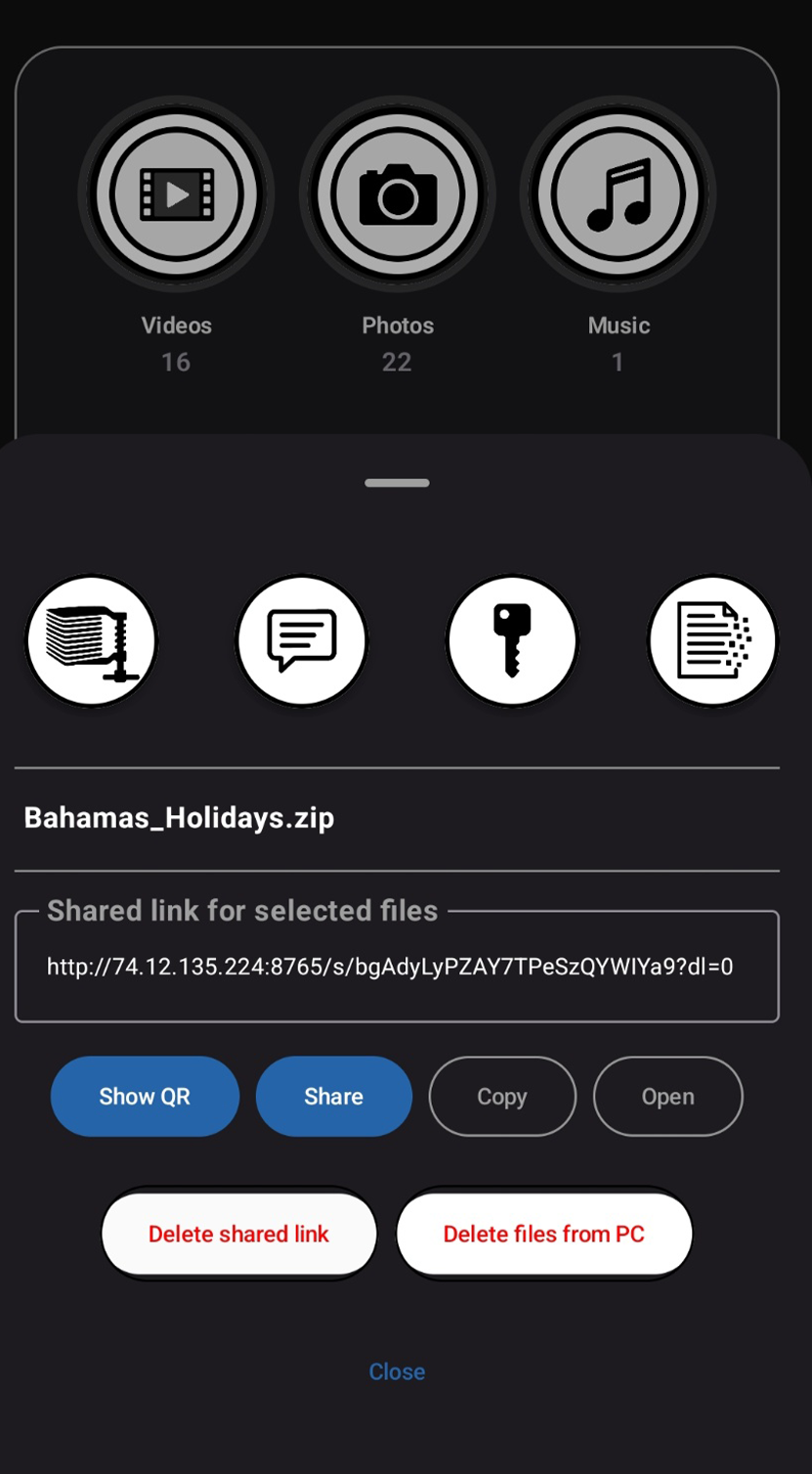
Create a shareable link for one file or a group of files, then control how it is accessed with QR sharing, passwords, download limits, and expiration settings.
- Zip bundles one file or multiple files into a ZIP for easier sharing.
- Message adds a note that appears on the shared web page.
- Password protects the shared page before access.
- 1-time download limits access to a single download for extra security.
- Show QR lets someone scan and open the shared page immediately.
- Share opens Android’s share menu so the link can be sent through other apps.
- Copy copies the shared link.
- Open opens the shared page in the browser.
- Delete shared link disables the active link after a confirmation prompt.
- Delete file from PC removes the file from the drive after confirmation.
Uploads
Send files from your phone to your PC with live progress
Upload one file or many at the same time, watch progress live, and review recent uploads from a clean mobile interface designed for fast transfers.
- Multiple uploads lets you send several files in one session.
- Live progress shows total upload status and individual file progress.
- Recent uploads makes it easy to review what was sent.
- Wi-Fi transfers take advantage of your local network speed.
- Large file support has been tested with a 7 GB upload on a modern phone over fast Wi-Fi.
Library folders
Create custom libraries for fast access from your phone
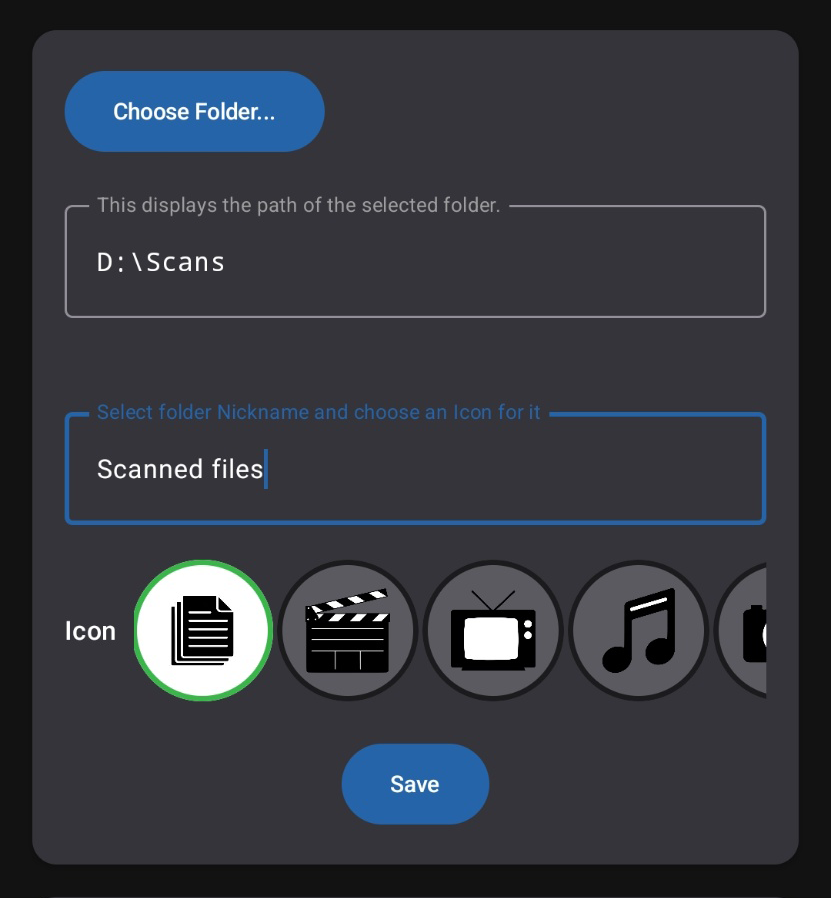
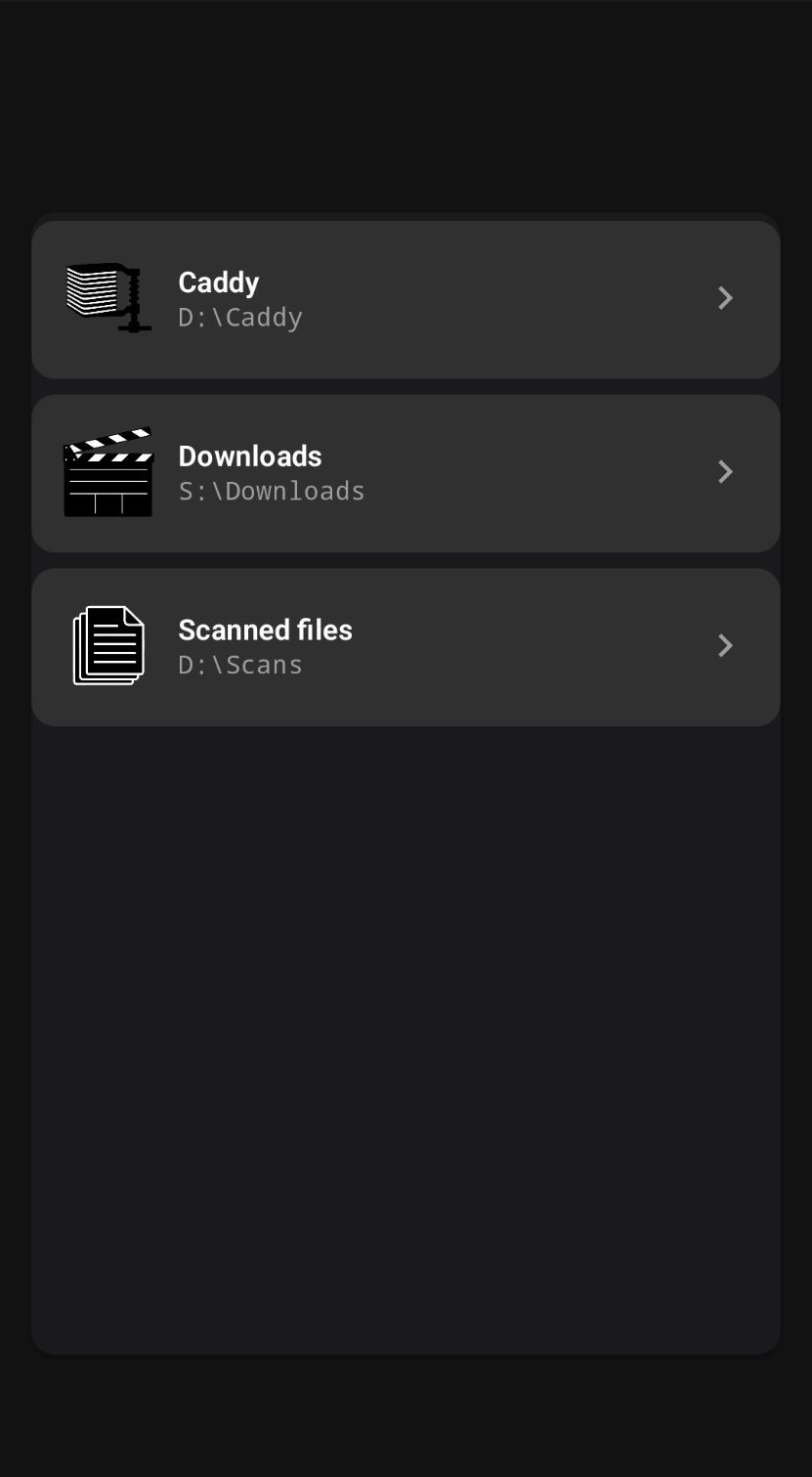
Choose a drive or subfolder from your PC, give it a clear name, pick an icon, and save it as a library that appears in the mobile app.
- Choose a folder from an allowed drive or any subfolder you want to make available.
- Name it clearly so it is easy to recognize from your phone.
- Pick an icon to make browsing faster and more visual.
- Save the library and have it show up in the app for quick access later.
Media access
Stream videos, music, and photos directly from your server
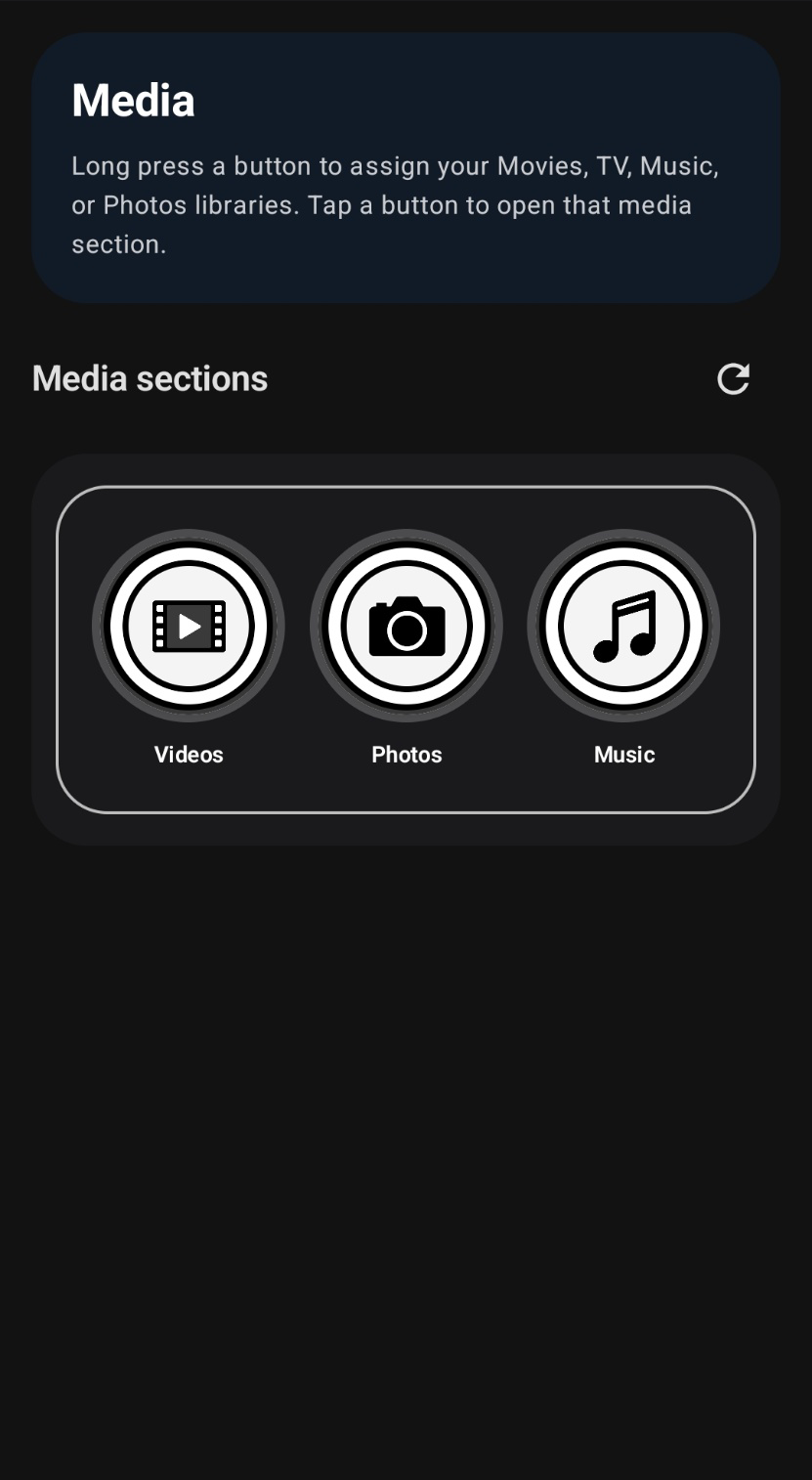
Tap supported media files to play or view them instantly from your PC. Press and hold to open the normal sharing options. Media works consistently across Files, Libraries, and the dedicated Media section.
- Quick tap opens videos, music, and images directly from the server.
- Press and hold still opens the sharing flow when you want to send something.
- Dedicated Media section gives you clean one-tap access to Videos, Photos, and Music.
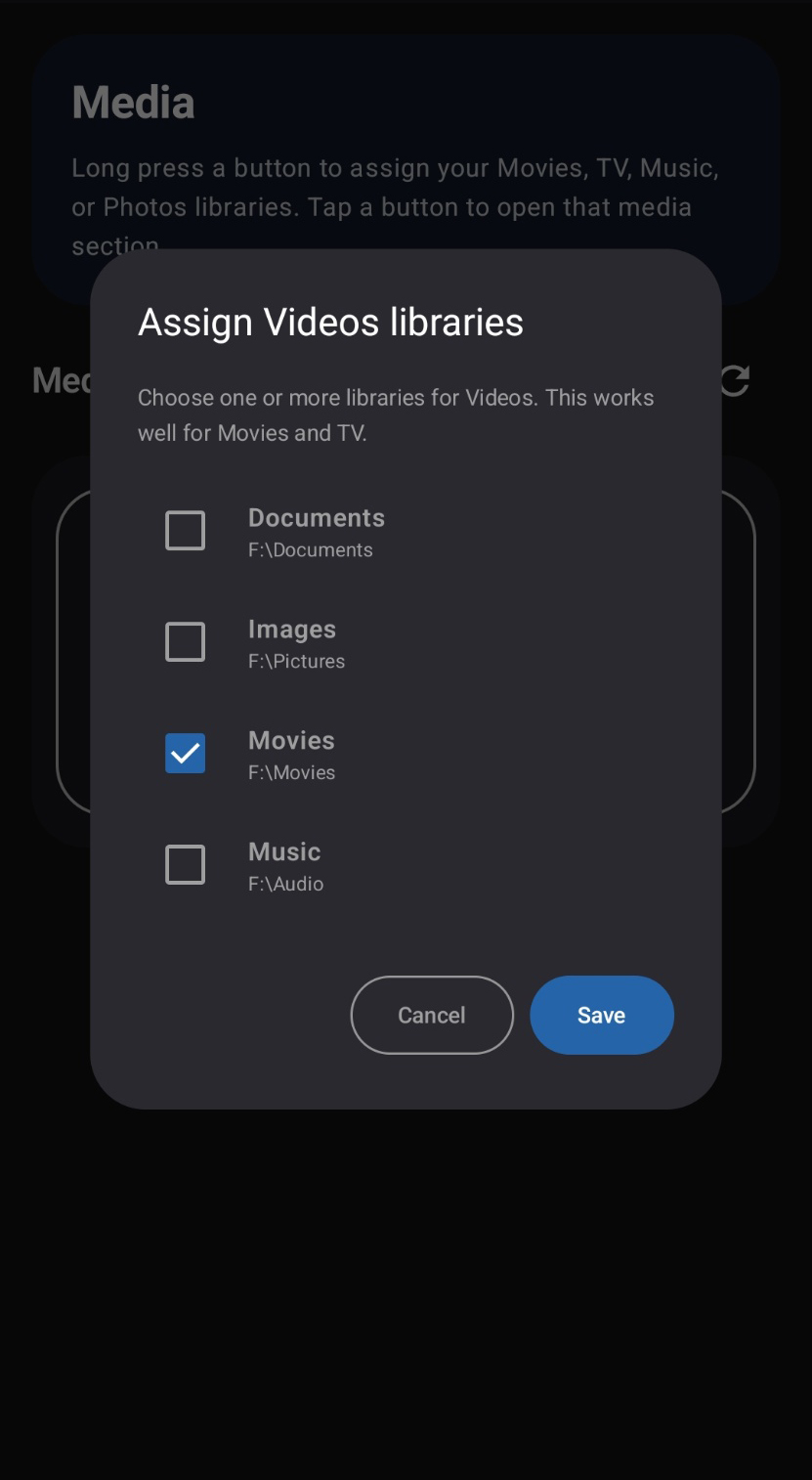
- Assignable media libraries let you choose which active libraries belong under each media button.
- Cleaner file browsing keeps media-assigned libraries out of the regular Files source list.
Automatic recovery
Automatically reconnects when your network changes
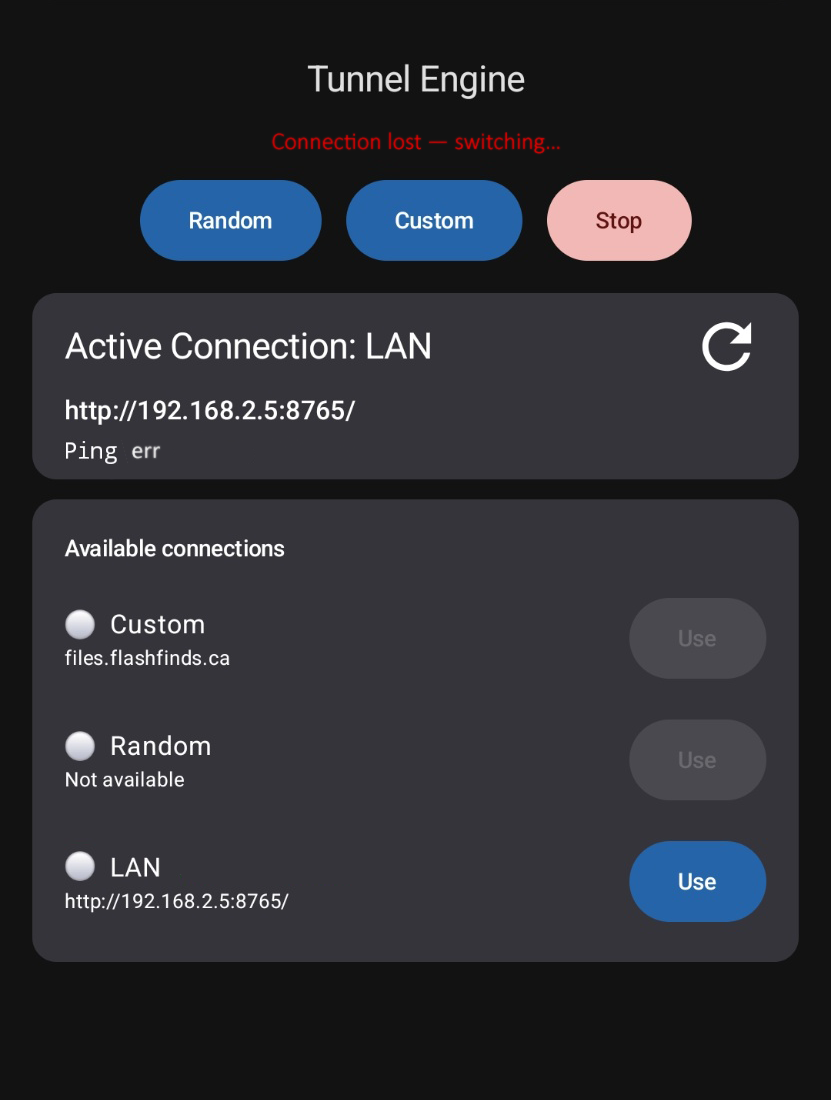
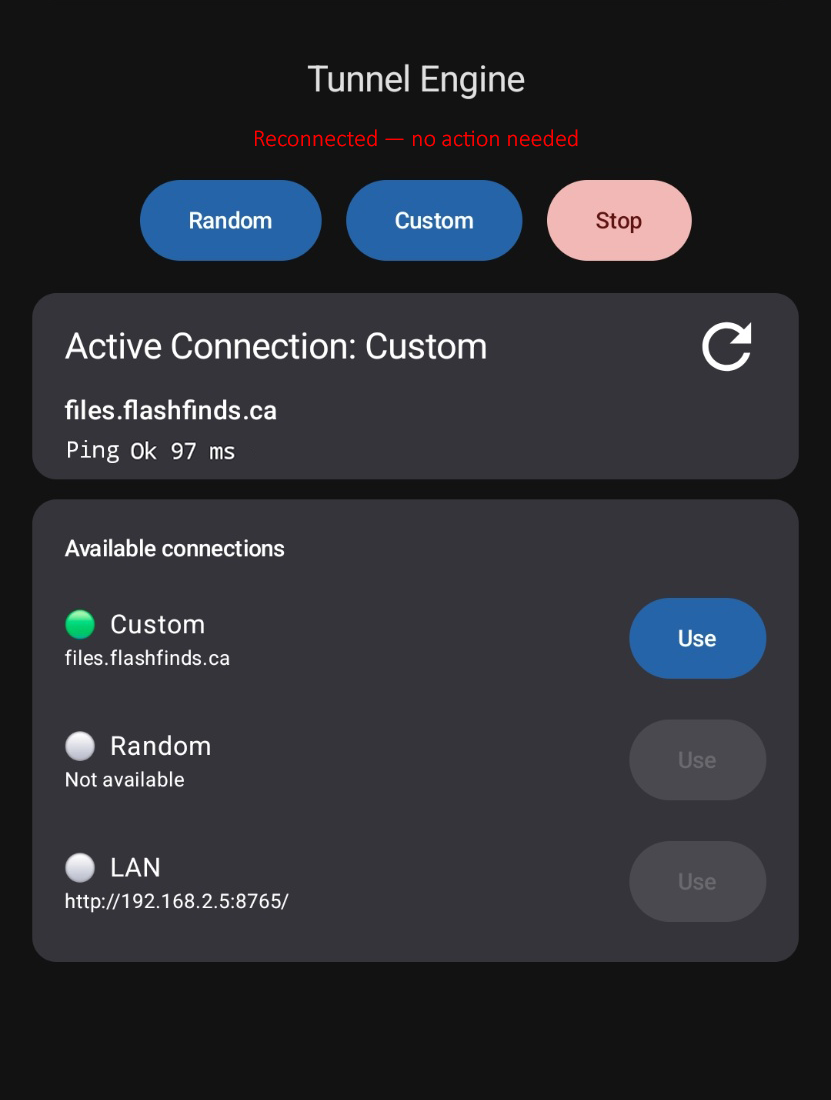
If your local connection stops working, PhonePCTransfer can switch to a remote tunnel connection and restore access automatically, so you can keep going without manual setup.
- Detects lost local access when your LAN connection is no longer reachable.
- Starts remote recovery after a short buffer when needed.
- Prefers your custom server name first when one is configured.
- Updates the app automatically with the new connection details.
- Gets you back in quickly without manual reconfiguration.